Profound Knowledge Bases - Product feature documentation
This product feature writeup was a take-home project that I completed for the interview process at Profound, an AI marketing intelligence company.
Target Audience: Marketing specialists and other Profound users.
My contribution: Turned a series of unknowns and a few UI screenshots into a comprehensive feature writeup and tangible setup instructions.
Challenges: Limited time, unfamiliar domain, inferring context from minimal resources provided with the task.
AI usage: Claude was used for initial drafting and research on unfamiliar domain areas.
The task was to write documentation for the company's new feature - Knowledge Bases, and provide an information architecture suggestion of how to integrate the newly written docs into the existing customer-facing knowledge base.
The contents are being shared here with the permission of Profound. There is a lot of text, so I'm omitting some sections to hopefully make it less overwhelming. The original submission includes UI screenshots that I am also leaving out, since without the context of the product, they don't add anything useful to the guides. Also, at the moment of writing this article, the feature is still unreleased, so the UI might end up looking completely different anyway.
You are welcome to read the complete documentation with screenshots, instructions and rationale in the submission GitHub repo.
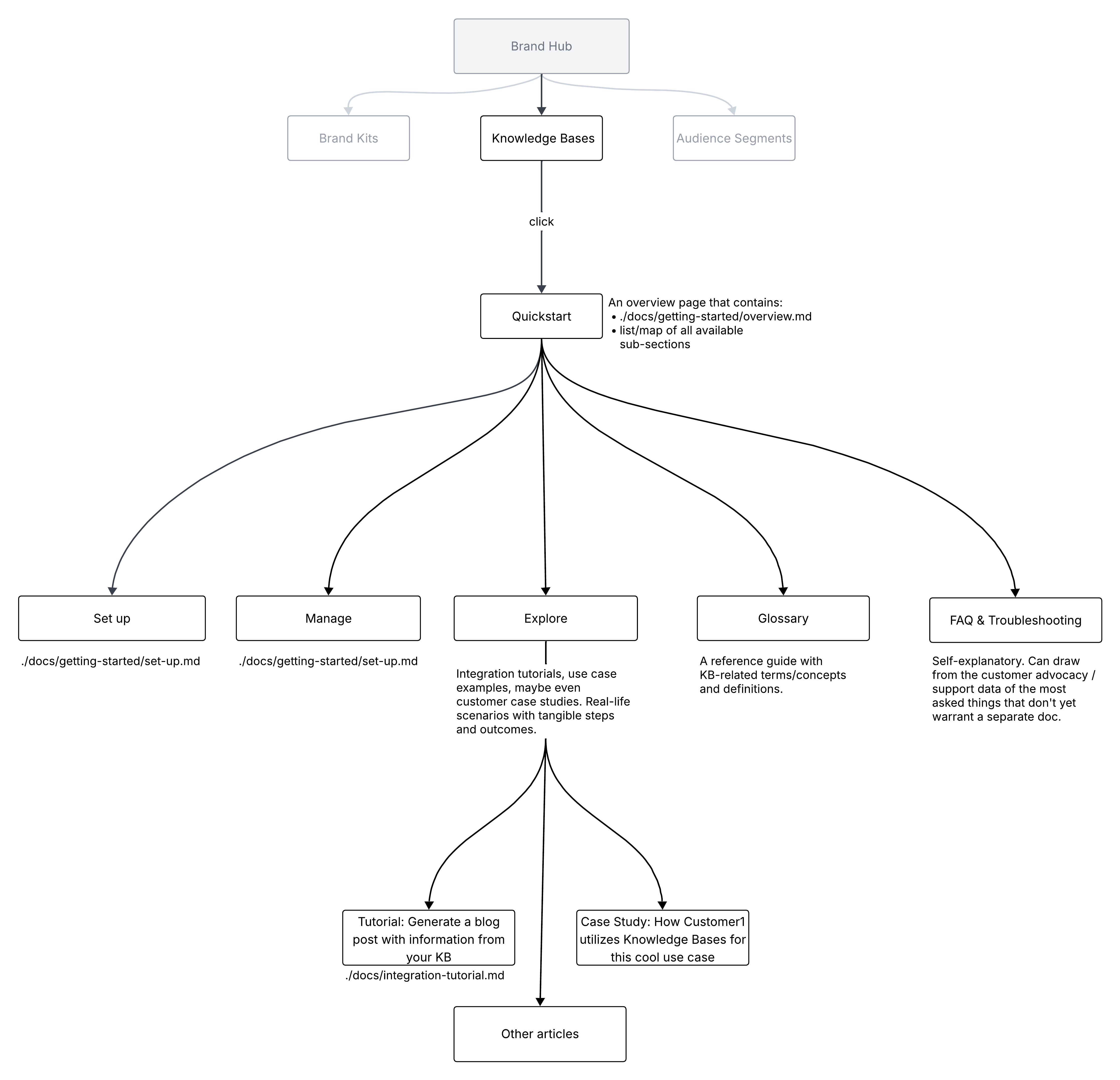
Information Architecture Diagram
Instructions on how to interpret this diagram, along with the decisions rationale is available in the Information Architecture section of the submission.
Getting Started with Knowledge Bases
Knowledge Bases allow you to connect your company's internal documents directly to Profound's Brand Hub, enabling intelligent search, integration with Workflows, and generation of content that accurately reflects your product.
Why Knowledge Bases are valuable
While Brand Kits can define how your brand communicates: your tone, voice, writing style, Knowledge Bases provide the what: the actual facts, data, and proprietary information your content needs to be accurate and authoritative.
Knowledge Bases empower your team to:
-
Ground AI content in facts, not hallucinations: Your content can sound perfectly on-brand but still contain incorrect product specs, outdated pricing, or made-up statistics. Knowledge Bases solve this by letting you search for exact information, like your company's enterprise pricing model or customer success metrics for financial services, and pull verified and approved data directly into generated content.
-
Leverage proprietary insights competitors can't access: Your competitive advantages, internal research, customer insights, and product roadmaps don't exist on the public web. Knowledge Bases give Workflows access to this proprietary content, enabling you to create authoritative content that stands out in AI search results because it's backed by unique data only you possess.
-
Update once, propagate everywhere: Organize content into folders like "Product Documentation" and "Competitive Intelligence," then let Workflows query them automatically. When your product team updates a feature spec or your research team publishes new customer insights, every future Workflow pulls the latest information. No more manually updating dozens of content briefs or finding outdated claims in published articles.
-
Eliminate the research bottleneck: Instead of digging through Google Drive, SharePoint, and Slack threads hunting for that customer quote or ROI stat, search your Knowledge Base with natural language queries like "testimonials from healthcare customers" and instantly surface the exact excerpt, complete with source document and page number. This transforms hours of research into seconds, freeing your team to focus on strategy and innovation.
Next steps
- Set up your first Knowledge Base
- Manage your Knowledge Bases
- Learn best practices for structuring your Knowledge Base
- Learn how to integrate a Knowledge Base into a Workflow
Managing Knowledge Bases
Organizing content with folders and files
Adding folders and files
- Select a Knowledge Base from the list, click on its name.
- Click Add Folder to create a new folder.
- Click Add Files to upload documents directly.
Supported file types include PDF, DOCX, TXT, and other common file formats.
Managing files
File tagging
Files can be assigned tags to help with categorization and search.
When you sync your Knowledge Base, some tags are added to your existing files automatically based on the file content. You can edit or add tags by clicking on the individual files and following the prompts.
When adding custom tags, make sure to use clear, descriptive tag names (e.g., "Onboarding", "Guide", "HR", etc.) for the best results.
Multiple tags can be added to the same file, and multiple files can have the same tags.
Understanding storage limits
Based on your Profound plan, your workspace includes a certain amount of storage for Knowledge Bases. The default storage allocation on a Starter plan is 10GB. If you need more, you can talk to your sales representative or contact our sales team using the contact form to explore your options.
You can keep track of your storage usage in the Brand Hub > Knowledge Bases tab, where it is displayed (e.g., 3.7GB/10GB Used) just above the Knowledge Bases list:
Searching your Knowledge Base
The Knowledge Base Search Test feature lets you query your content before using it in Workflows, helping you verify that relevant information is indexed correctly.
Running a search
- Open any Knowledge Base.
- In the Knowledge Base Search Test section, enter your query.
- Click Run Search or press Enter.
- Click Advanced Settings to refine your search parameters if needed.
- Review results ranked by relevance.
Understanding search results
Search results are organized by match quality.
High Match results directly answer your query, while Medium Match results are partially relevant, and Low Match results are only loosely related to your search terms.
Each result includes a source document name and folder, relevant text excerpt with the page number, as well as a "Show more" option to view extended context. To view the entire document that includes your search term, click on the document file name.
Be specific in your search queries: "LinkedIn product description guidelines" returns better results than "social media". Try a few different phrasings to see which ones yield the best results.
What are chunks?
When you upload files to a Knowledge Base, Profound automatically processes them into chunks.
Chunks are small segments of meaningful text within a file. For example, a 50-page product documentation PDF might be broken into 200 chunks, with each chunk containing a specific section like a feature description, pricing table, or integration guide.
Chunking is what allows the Knowledge Base search results to point to the exact relevant piece of text rather than an entire document, making it faster to find specific information.
Read full documentation, including setting up Knowledge Bases, best practices and more in the submission GitHub repo.